How to Protect Your Computer From Malware: Essential Steps
Learning about protecting your computer from malware is a vital skill for anyone navigating the digital landscape. By implementing proactive security habits, you can significantly reduce the risk of unauthorized access and system compromise. This article outlines the most effective strategies to keep your data safe and your machine running smoothly.
You will learn how to identify potential threats, configure your operating system for maximum safety, and use software tools to build a wall against cyber attacks. Mastering these techniques ensures that your personal information remains private and your digital identity stays secure from evolving online dangers.
Immediate Action Steps for System Security
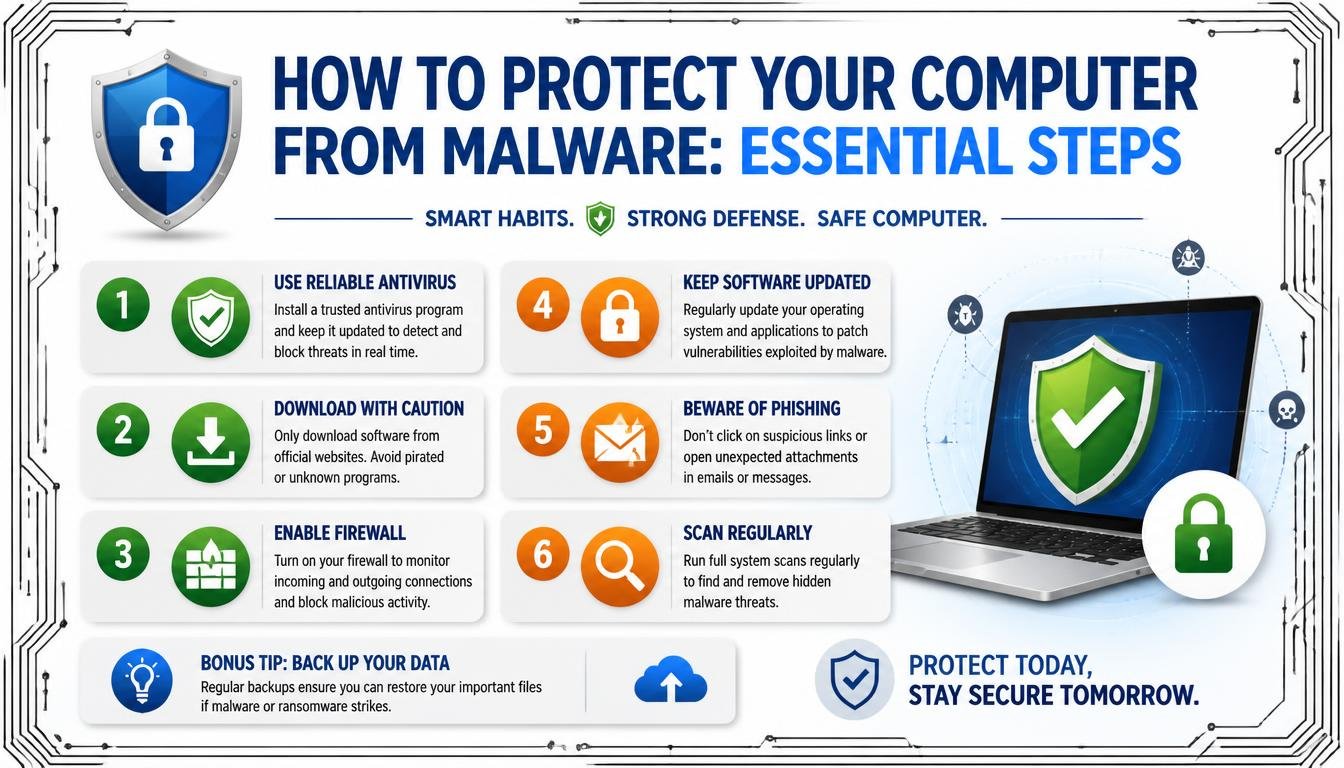
The most effective way to start protecting your computer from malware is to ensure your operating system and all installed applications are fully updated. Software developers regularly release patches to fix vulnerabilities that malicious actors exploit to gain access to your files. Ignoring these updates leaves a digital door wide open for potential infections.
You should configure your system to install these updates automatically whenever they become available. This simple change removes the human error of forgetting to click the update button.
Beyond system updates, you must cultivate a healthy skepticism toward unexpected emails and pop-up messages. Malware is frequently distributed through phishing campaigns that impersonate legitimate services or banks. Never click on attachments from unknown senders or follow links that appear in unsolicited messages.
Even if an email looks official, hovering your mouse over a link will reveal the actual destination URL. If the address looks suspicious or doesn’t match the sender’s supposed identity, delete the message immediately.
Another critical step involves managing your user privileges on the computer. Many people operate their machines using an administrator account by default, which gives software full control over the system. Instead, create a standard user account for your day-to-day browsing and general tasks.
If a piece of malicious code attempts to install itself while you are logged in as a standard user, the operating system will require an administrator password to proceed. This extra layer of friction is often enough to stop a silent installation in its tracks.
Evaluating Security Software Options
You might wonder if you need third-party antivirus software when your computer already includes built-in protection. For users of modern operating systems, the native tools are quite capable of catching most common threats. Windows Defender, for instance, has evolved into a highly effective security suite that integrates deeply with the system architecture.
It monitors file behavior in real-time and scans incoming downloads for known signatures. For many users, this is sufficient when combined with smart browsing habits.
However, some users prefer the advanced features offered by dedicated security suites. These products often include extras like password managers, secure VPN connections, or specialized browser extensions that block trackers. If you frequently handle sensitive financial data or work in environments with higher exposure, a paid subscription can offer peace of mind.
Just ensure you only run one real-time antivirus program at a time to prevent system instability. Running multiple security tools simultaneously often causes conflicts that degrade performance rather than improving safety.
When selecting software, prioritize well-known vendors with a long history of independent testing performance. You can look at reports from organizations like the AV-TEST Institute to see how different programs handle real-world threats. Avoid “free” tools found in banner ads or suspicious pop-ups, as these are frequently malware in disguise.
Stick to established brands that have transparent privacy policies and clear business models. Quality security software should be a silent partner, working quietly in the background without constantly nagging you for attention.
Browser Habits and Online Safety
Your web browser is the primary gateway through which malware enters your computer. Because you spend most of your time online within this application, it is a high-value target for attackers. Start by keeping your browser updated to the latest version, as older browsers often lack the modern security protocols necessary to handle encrypted traffic.
You should also audit your extensions periodically to ensure you aren’t running unnecessary code. Every extension you install has the potential to read your browser activity or interact with your saved data.
Using a content blocker is one of the most effective ways to stop “malvertising” in its tracks. Malvertising occurs when legitimate advertising networks are compromised to serve malicious scripts to unsuspecting visitors. By blocking these scripts, you prevent the browser from loading harmful code before you even interact with the page.
Choose a reputable blocker that is open-source and widely vetted by the community. This simple tool significantly cleans up your browsing experience while adding a necessary layer of protection.
Be cautious when downloading files, especially from peer-to-peer sharing networks or unofficial software repositories. These platforms are notorious for hosting “bundled” installers that include unwanted software or malicious payloads alongside the program you actually want. If you need a specific piece of software, always download it directly from the developer’s official website.
If you are unsure about a file you have downloaded, use a service that allows you to scan the file against dozens of different antivirus engines simultaneously. Never execute a file if it triggers a warning from your security software.
Managing Passwords and Digital Identity
Weak or reused passwords are a major entry point for attackers looking to compromise your accounts. If a hacker gains access to your email or social media, they can use that foothold to send malicious links to your contacts. You should use a unique, complex password for every single service you use.
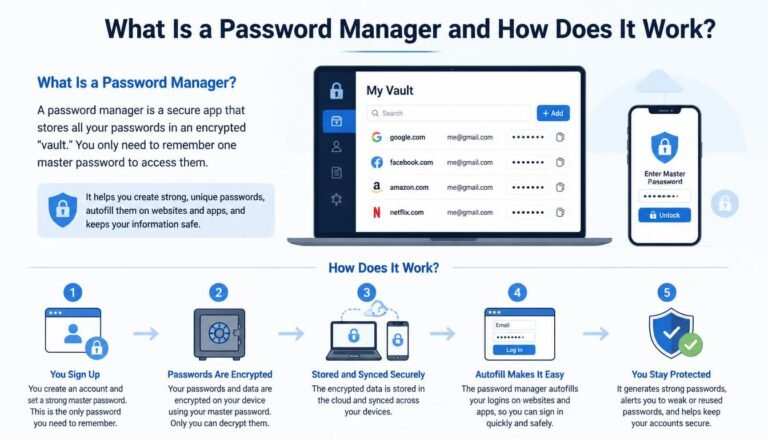
Since remembering dozens of long, randomized strings is impossible, use a reputable password manager. These tools encrypt your credentials in a local vault and can automatically fill them into websites, preventing keyloggers from capturing your keystrokes.
Multi-factor authentication (MFA) is perhaps the most important security feature you can enable today. By requiring a second form of verification—like a code from your phone or a hardware key—you make it nearly impossible for a hacker to access your accounts even if they steal your password.
Enable MFA on every account that supports it, especially your email, banking, and primary cloud storage. Most major platforms now offer various ways to verify your identity, so there is no excuse to leave your front door unlocked.
Be mindful of the information you share on social media, as this data is often used for social engineering. Scammers look for details like your pet’s name, your high school, or your hometown to guess your security questions. If you make this information public, you are essentially giving attackers the keys to your account recovery process.
Keep your profiles private and avoid sharing details that could be used to impersonate you. A little bit of digital privacy goes a long way toward protecting your overall computer security.
The Role of Data Backups
Data loss from ransomware is one of the most devastating outcomes of a malware infection. Ransomware works by encrypting your personal files and demanding payment for the decryption key. If you don‘t have a backup, you are faced with the terrible choice of losing your data or paying criminals with no guarantee of success.
A robust backup strategy is the ultimate insurance policy against this threat. You should follow the “3-2-1” rule to ensure your data stays safe regardless of what happens to your machine.
The 3-2-1 rule is a simple framework for data management that keeps your information resilient. You should maintain at least three copies of your data, stored on two different types of media, with one copy kept off-site. This means having your primary files on your computer, a second copy on an external hard drive, and a third copy in a secure cloud storage service.
If an infection hits your main machine, you can wipe it clean and restore your files from your offline or cloud backups. This process renders the threat of ransomware almost entirely powerless.
Automation is key to maintaining your backups. If you rely on manually copying files to a USB drive, you will eventually forget to do it. Use dedicated software that syncs your important folders to an external drive or a cloud provider automatically in the background.
Check your backups periodically to ensure the files are readable and the process is working as intended. A backup that hasn’t been tested is merely a hope, not a security plan. Keep your backup drive disconnected from the computer when not in use to protect it from being encrypted during a live malware attack.
Understanding Different Types of Malware
To better defend your computer, you should understand the types of threats you are trying to avoid. Malware is an umbrella term that covers many different malicious programs, each with its own goals. Some are designed for espionage, while others are purely destructive or focused on financial gain.
Recognizing these categories can help you identify suspicious behavior on your system more quickly. The following table highlights common types of threats and their primary objectives.
| Threat Type | Primary Objective | Common Delivery Method |
|---|---|---|
| Ransomware | Extortion via file encryption | Phishing emails and infected links |
| Spyware | Data theft and surveillance | Bundled software and malicious ads |
| Keyloggers | Credential and password theft | Infected attachments |
| Adware | Forced advertising and tracking | Free software installers |
| Trojan Horses | Backdoor access for other malware | Disguised as legitimate programs |
Each of these threats exploits different aspects of your digital life. Spyware might sit quietly on your machine for months, slowly harvesting your browsing habits to build a profile for advertisers or identity thieves. Keyloggers are more aggressive, waiting for you to type in your bank credentials before sending that data to a remote server.
By understanding that “malware” isn’t just one thing, you become more observant of subtle changes in your computer’s performance. If your machine is suddenly sluggish or browser windows are opening on their own, don’t ignore it.
Maintaining Hardware and Network Security
Your computer doesn’t exist in a vacuum; it is part of a larger network that includes your router and other connected devices. The router is the first line of defense for your entire home network. Make sure you change the default administrative password on your router immediately after setting it up.
Many routers ship with factory-default passwords that are easily found online, allowing attackers to change your DNS settings and redirect your traffic to malicious websites. Keep your router’s firmware updated to close security holes in the networking hardware itself.
Use a strong, unique password for your Wi-Fi network and choose the WPA3 encryption standard if your devices support it. Avoid using public Wi-Fi networks for sensitive tasks like online banking or logging into your company email. If you must use public internet, use a reliable VPN to encrypt your traffic.
A VPN creates a secure tunnel between your computer and the internet, preventing anyone on the same network from intercepting your data. This is particularly important when you are traveling or working from a coffee shop.
Finally, consider the physical security of your machine. If you leave your laptop unattended in a public space, someone can install a hardware keylogger or a malicious USB device in seconds. Use a strong login password or biometric authentication to prevent unauthorized access if your computer is lost or stolen.
If you use a desktop, keep it in a secure location and ensure your visitors don’t have unrestricted access to your ports. Physical access is often the ultimate bypass for even the most sophisticated software security measures.
Common Questions About Computer Security
How do I know if my PC has malware on it?
You might notice your computer slowing down significantly, experiencing frequent crashes, or seeing unexpected pop-ups. Other signs include your browser homepage changing without your permission or your security software suddenly turning off. If your machine is acting erratically, run a full system scan with your primary security tool immediately.
Do I really need antivirus software on my computer?
Yes, even if you are a careful user, you need a layer of protection. Modern threats can arrive through zero-day vulnerabilities that don’t require you to click anything. Reliable software acts as a safety net, catching threats that you might miss while browsing or downloading files.
What are the most important habits for staying secure?
The most important habits are keeping your software updated, using unique passwords with a manager, and enabling multi-factor authentication. Avoiding suspicious links and only downloading files from official sources will also stop the vast majority of infections. Consistency is more important than using complex, expensive tools.
How do I run a security check on my computer?
Open your built-in security settings—such as Windows Security—and look for the option to perform a “Full Scan.” This will take longer than a “Quick Scan” but will check every file on your hard drive for known threats. You can also use on-demand scanners from reputable security vendors to get a second opinion if you suspect an infection.
Can I get malware from just visiting a website?
Yes, this is known as a “drive-by download.” It happens when a website is compromised and hosts a malicious script that exploits a vulnerability in your browser to download malware automatically. Keeping your browser updated and using a reputable content blocker are the best ways to prevent this.
Final Thoughts on Digital Safety
Protecting your computer from malware is an ongoing process rather than a single task. By maintaining a regular update schedule, using strong passwords, and being cautious about what you click, you build a resilient environment for your digital life. You don’t need to be a technical expert to achieve a high level of security; you just need to be consistent with the basics.
Start by auditing your current settings and enabling the security features mentioned in this article today. If you have questions or want to learn more about specific tools, feel free to reach out and continue the conversation. Staying informed is the best way to ensure your personal data remains under your control for years to come.