How to Safely Download and Install Software
Learning how to safely download and install software is a fundamental skill for maintaining the health and performance of your computer. Every time you bring a new program into your digital environment, you introduce potential risks alongside new features.
By following a structured approach to verification and source selection, you can drastically reduce the likelihood of encountering malicious files or unwanted bloatware. This article will show you exactly how to vet your sources, manage your permissions, and ensure your system remains secure throughout the entire installation process.
When you want to know the most reliable way to perform this task, the answer is simple: always prioritize official channels. The safest route is to download programs directly from the developer’s verified website or through a trusted, integrated platform like the Microsoft Store.
These platforms perform automated security checks on the software, filtering out many common threats before they ever reach your device. Never rely on third-party “download portals” that bundle extra software with the file you actually want.
Verify Your Sources Before You Click
The most common point of failure in digital security happens before the file even hits your hard drive. Attackers frequently create deceptive websites that mirror the appearance of legitimate software developers.
They use these sites to trick you into downloading a compromised version of a popular tool. Always check the URL in your browser’s address bar to ensure it matches the official domain of the company.
Look for the padlock icon in the browser address bar, which indicates the site is using HTTPS encryption. While this doesn’t guarantee the software itself is safe, it means the connection between your computer and the server is private.
If a site looks unprofessional, contains excessive advertisements, or uses a suspicious domain extension, leave immediately. Trust your instincts; if a site feels off, it probably is.
Understand the Risks of Bundled Installers
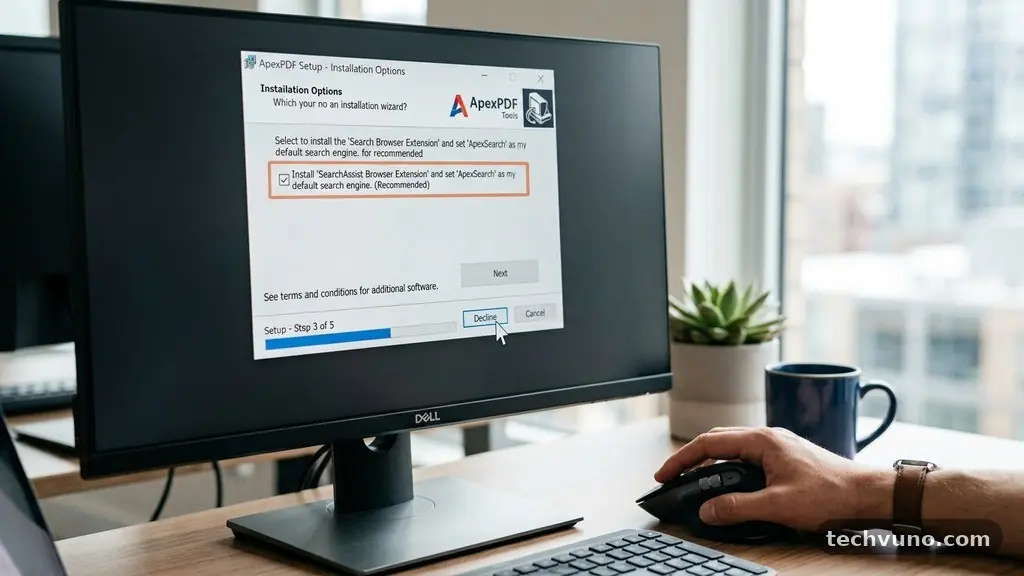
Many free programs use a practice called “bundling,” where the installer for your desired application also includes hidden, unwanted software. These can range from annoying browser toolbars to more serious adware that tracks your browsing habits.
Some installers will present you with an “Express” or “Recommended” setup option that automatically installs these extras. Always select the “Custom” or “Advanced” installation path during the setup process.
By opting for a custom installation, you gain visibility into every component being added to your system. You can uncheck boxes for browser extensions, search engine changes, or additional utilities that you never intended to download.
Taking an extra minute to read through these screens will save you hours of cleanup time later. If an installer forces you to accept additional software as a condition of using the main program, reconsider whether you truly need that tool.
Use Antivirus Programs as Your Last Line of Defense
Even when you are careful, it is wise to have a secondary layer of protection active on your desktop. Modern antivirus programs are designed to scan files in real-time during download and before execution.
If you download a file from an unknown source, right-click the file and select the option to scan it with your security software. This manual check can often catch threats that might slip past automated filters.
| Source Type | Security Level | Risk Factor |
|---|---|---|
| Official Developer Website | High | Low |
| Microsoft Store / App Store | Very High | Very Low |
| Third-Party Download Portals | Low | High |
| P2P / Torrent Sites | None | Critical |
Ensure your security software is updated regularly, as new threats emerge daily. If your antivirus triggers an alert during the download, do not try to bypass it.
These warnings are rarely false positives when they originate from reputable, up-to-date security engines. It is always safer to find an alternative source for the software than to gamble with a flagged file.
Manage Your Downloads and File Storage
Organizing your downloads folder is more than just good housekeeping; it is a security practice. When you download files to a single, chaotic location, it becomes difficult to track what you have installed and when.
Create a dedicated folder for new installers and delete them once the software is successfully running. Leaving old installers sitting on your desktop or in your downloads folder creates a risk where you might accidentally run an outdated, vulnerable version of a program.
If you are downloading a large number of files, consider using a staging folder on a separate drive or partition. This keeps your system drive clear and allows you to scan the entire folder before moving the files to their permanent location.
Never execute a file directly from your web browser’s download prompt if you aren’t sure of its origin. Save the file first, verify its integrity, and then initiate the installation.
Check File Integrity with Hashes
For advanced users or when downloading large files like operating system images, checking the file hash is an excellent practice. A hash is a unique string of characters generated by a mathematical algorithm that acts as a digital fingerprint.
If even a single bit of the file has been altered by a third party, the hash will change completely. Most reputable software developers provide the hash of their official files on their download pages.
After your download finishes, you can run a simple command in your terminal or use a utility tool to generate the hash of the file you saved. Compare this result to the value provided on the developer’s website.
If the strings match, you can be certain the file is exactly what the developer intended. If they do not match, the file has been corrupted or tampered with and should be deleted immediately.
Monitor Permissions During Installation
When you install a program, it often asks for permissions to access your files, camera, microphone, or network settings. Review these requests carefully rather than blindly clicking “Next” or “Accept.”
If a simple calculator app asks for permission to access your contacts or your location, it is a significant red flag. Most legitimate applications only request the permissions they genuinely need to function.
Modern operating systems have become much better at sandboxing applications, which limits the damage an app can do if it is malicious. However, you are still the primary gatekeeper of your system’s security.
If you are unsure why an app needs a specific permission, deny it and see if the program still works. If the app refuses to run without invasive permissions, you should look for a more privacy-conscious alternative.
Keep Your Software Updated
The process of safely downloading and installing software does not end once the app is on your computer. Developers frequently release updates to patch security vulnerabilities that have been discovered since the initial launch.
If you ignore these prompts, you leave your system exposed to exploits that have already been fixed elsewhere. Enable automatic updates whenever the software provides the option.
If the software does not support automatic updates, set a recurring reminder to check for new versions on a monthly basis. Outdated software is one of the most common vectors for malware infections.
By keeping your programs current, you ensure that you are benefiting from the latest security enhancements. A program that is not maintained by its developer should eventually be removed from your system, as it poses an increasing risk over time.
Frequently Asked Questions
How can I tell if a download is safe?
Always look for the developer’s official domain and check for HTTPS encryption. You can also use online file scanning services that run a file against dozens of different antivirus engines simultaneously to confirm its safety.
What comes first, downloading or installing?
You must always download the file, save it to your local storage, and perform a security scan before you begin the installation process. Never run an installer directly from the browser’s temporary cache.
Is it safe to download software from forums?
Generally, you should avoid downloading software from community forums or social media links. These sources are frequently used to distribute infected files, as there is no centralized oversight or verification process for the content shared there.
What should I do if my antivirus flags a file?
If your antivirus software flags a download, take the warning seriously and delete the file. Do not attempt to add an exception or “run anyway” unless you are absolutely certain of the file’s origin and have verified its hash against the official source.
Why is the Microsoft Store safer than the web?
The Microsoft Store acts as a gatekeeper, requiring apps to pass specific security and policy tests before they are listed. This significantly lowers the chance of encountering malware compared to downloading unsigned executables from various websites.
Conclusion
Taking the time to verify your software sources and monitor your installation settings is a vital part of protecting your digital life. By prioritizing official websites, opting for custom installation paths, and keeping your programs updated, you create a robust defense against unwanted intrusions. Following these steps helps ensure your computer remains a productive and secure space for your work and personal projects.
Safely downloading and installing software is not about living in fear of the internet, but about developing consistent habits that protect your data. When you approach every new download with a critical eye, you gain confidence in the tools you use every day. If you have questions about a specific type of software or want to share your own tips for digital safety, feel free to reach out and continue the conversation.