How to Keep Your Software and Devices Up to Date
Staying on top of your digital health by keeping your software and devices up to date is one of the most effective ways to protect your personal data. When you neglect these small maintenance tasks, you leave digital doors wide open for vulnerabilities that could have been easily closed.
Learning the best habits for managing these updates ensures your technology runs faster, lasts longer, and remains secure against modern threats. Whether you are using a smartphone, a laptop, or an IoT home device, the following strategies will help you streamline your maintenance routine so you can enjoy your tech with peace of mind.
The Importance of Regular Updates
The primary reason for keeping your software and devices up to date is security. Software developers constantly discover new weaknesses in their code, and hackers work just as hard to exploit them before a patch is released.
When you install an update, you are essentially applying a digital shield to your system. Without these patches, your computer or phone remains vulnerable to malware, ransomware, and unauthorized data access.
Beyond security, updates often include performance improvements that make your devices run more efficiently. Developers frequently optimize code to reduce battery drain, improve memory management, and fix bugs that cause crashes or slow response times.
A device that feels sluggish or unresponsive is often just waiting for a software update to restore its original speed. Keeping things current is essentially a free way to extend the lifespan of your hardware.
Finally, updates provide you with new features and better compatibility with modern apps. As operating systems evolve, older versions eventually lose support, meaning new software won’t run correctly on them.
By staying current, you ensure that you can use the latest tools and services without encountering compatibility errors. It is a proactive approach that keeps your digital life functional and relevant for years to come.
Enabling Automatic Updates
The single most effective way to manage your digital maintenance is to let your devices handle it for you. Most modern operating systems offer an automatic update feature that runs in the background.
Enabling this means you no longer have to remember to check for patches manually. Your system will download and install critical security fixes as soon as they become available.
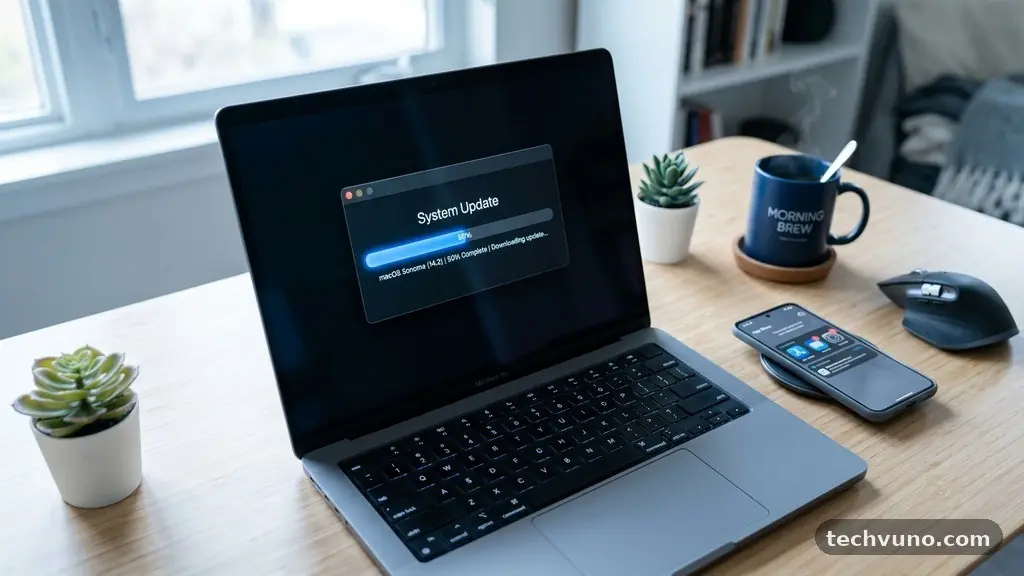
To activate this, head to the settings menu on your primary computer or mobile device. Look for a section labeled “Software Update” or “System Update.”
Within these menus, you will usually find a toggle switch that allows the device to download and install updates automatically. Once this is set, the process becomes entirely hands-off.
While some people worry that automatic updates will restart their device at inconvenient times, most modern systems allow you to schedule these events. You can often set your system to install updates during overnight hours when you are not actively using the device. This provides the safety of constant protection without interrupting your workflow during the day.
Managing Mobile App Updates
While your operating system needs care, your individual apps require attention as well. Apps often contain their own security vulnerabilities, and developers release updates to fix these specific issues. If you do not update your apps, you might be running an outdated version that is incompatible with the latest security protocols of your phone.
Most smartphone users can manage these through the App Store or Google Play Store. Both platforms offer an “Auto-update” feature that functions similarly to the system-wide settings.
When enabled, your phone will refresh your applications whenever you are connected to Wi-Fi. This prevents you from accidentally using up your cellular data plan while downloading large files.
If you prefer to keep a closer eye on your data usage, you can choose to update apps manually. Periodically opening the store and selecting “Update All” takes only a few seconds.
This practice also gives you a chance to see what new features have been added to your favorite tools. It keeps you informed about how your technology is changing and improving over time.
Handling Firmware for IoT Devices
Many people focus only on their computers and phones while forgetting about the “smart” devices in their homes. These devices, such as smart thermostats, cameras, and light bulbs, run on firmware rather than traditional software. Firmware acts as the internal operating system for the hardware, and it requires updates just like a laptop.
Unfortunately, many IoT devices do not have the same level of automated update support as a smartphone. You may need to use a companion app on your phone to check for firmware updates for each specific device.
Set a reminder on your calendar to check these apps once a month. It is a small investment of time that prevents your smart home from becoming a weak link in your network.
If a device is no longer receiving updates from the manufacturer, it may be time to consider a replacement. Devices that are “end-of-life” and no longer supported are significant security risks.
They cannot be patched against new threats, making them potential gateways for hackers to enter your home network. Replacing outdated hardware is a necessary part of modern digital hygiene.
The Risks of Ignoring Updates
When you choose to skip updates, you are essentially gambling with your digital safety. The longer you wait to install a patch, the more time you give malicious actors to reverse-engineer the flaw.
Hackers keep databases of known vulnerabilities, and they specifically target users who are running outdated systems. This is often referred to as “low-hanging fruit” for cybercriminals.
Beyond security, ignoring updates can lead to system instability. Software is designed to work in an ecosystem where all components are current.
When you run an outdated operating system with brand-new apps, you are likely to experience frequent crashes, data corruption, and error messages. These technical headaches are almost always avoidable through simple maintenance.
| Update Frequency | Security Impact | Performance Impact |
|---|---|---|
| Weekly/Monthly | High Protection | Optimized Speed |
| Quarterly | Moderate Risk | Occasional Glitches |
| Never | Extreme Vulnerability | System Failure |
Best Practices for Safe Updating
Before running a major update, it is always a good idea to perform a backup of your important files. While updates are generally safe, a power outage or a rare software glitch could potentially interrupt the process. Having a recent copy of your photos, documents, and contacts ensures that you can recover your data if something goes wrong.
You should also ensure your device is charged or plugged into a power source. If a laptop or phone runs out of battery during a critical system update, it can leave the device in a “bricked” state.
Most devices have built-in safeguards to prevent this, but it is better to be safe than sorry. Always aim to have at least 50% battery life before initiating a major version jump.
Finally, be wary of fake update notifications. Cybercriminals often send emails or pop-up ads claiming that your computer is out of date and needs a “critical patch.”
These are almost always scams designed to trick you into installing malware. Only download updates through official channels, such as your system’s built-in settings menu or the manufacturer’s official website.
Verifying Official Sources
One of the most important rules of digital security is to never trust a third-party website to provide your software updates. If you see a pop-up on a random website claiming that you need to update your browser or drivers, close the tab immediately. Official updates will only ever come directly from the company that made the software or the operating system.
If you are unsure whether an update is legitimate, you can always visit the official support page of the developer. For instance, if you are concerned about your operating system’s status, you can check the Cybersecurity and Infrastructure Security Agency for general guidance on current threats and best practices. Trustworthy companies will never ask you to download an update file from an unverified source.
Maintaining this level of skepticism keeps you safe from phishing attempts. By sticking to the update mechanisms built into your devices, you bypass the risk of downloading malicious software. Always treat any unsolicited update prompt with suspicion, regardless of how official it may look.
Common Questions
How do I make sure everything on my computer is up to date?
To ensure your computer is current, visit the system settings and look for the “Check for Updates” button. For Windows, this is found in the Update & Security section; for macOS, look in System Settings under General. You should also check your web browsers and antivirus software, as these often have their own internal update checkers that run independently of the operating system.
Why is it important to keep software and devices up to date?
Updates are vital because they patch security holes that hackers use to steal data. They also fix bugs that cause your computer to freeze or run slowly. By keeping everything current, you ensure that your device remains secure, stable, and compatible with the latest applications you use every day.
What happens if you don’t update your software?
If you stop updating, your device becomes increasingly vulnerable to cyberattacks. You will also notice that apps stop working correctly, and your system may begin to crash or run very slowly. Eventually, your device will become completely incompatible with modern websites and services, rendering it effectively useless for most tasks.
Is it safe to update my Android device?
Yes, it is generally very safe and highly recommended to update your Android device. Manufacturers release these patches to address specific security flaws and improve battery life. Always update via the “System Update” menu in your phone’s settings to ensure you are receiving the official, verified software from your manufacturer.
Final Thoughts on Digital Maintenance
Keeping your software and devices up to date is a fundamental habit that protects your digital life. By enabling automatic updates and staying vigilant about the hardware in your home, you shield yourself from unnecessary risks and performance issues. This simple, proactive approach ensures that your technology remains a helpful tool rather than a source of frustration.
Start by checking your primary devices today to ensure they are running the latest versions. If you find that you have been neglecting this, don’t worry—simply start the update process now and enable automatic settings for the future.
Staying current is the best way to keep your data safe and your devices running smoothly for years to come. If you have questions about a specific device, check the manufacturer’s support site to get the most accurate instructions.